The life of an email sender is never boring. Hot on the heels of the recent Gmail and Yahoo changes, Apple Mail has a brand new look.
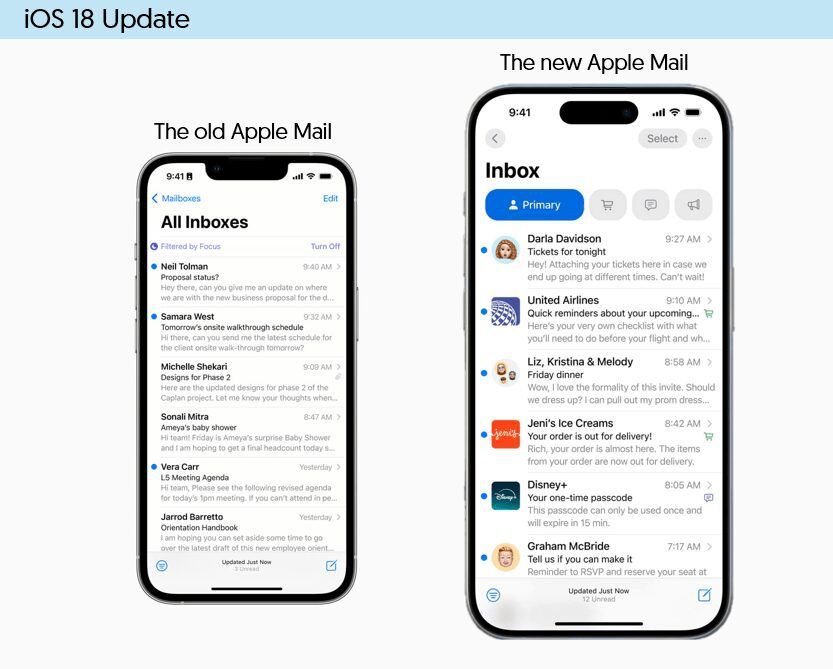
About 18.2, the latest Apple Mail update
In the 18.0 release, Apple announced these changes for Mail users:
- •A filtered inbox that looks a lot like Gmail
- •Pre-sorted inbox tabs for receipts, updates, and alerts
- •UI enhancements for easier reading
- •The classic preheader was replaced with an AI email overview
Later, they rolled out additional changes with 18.2:
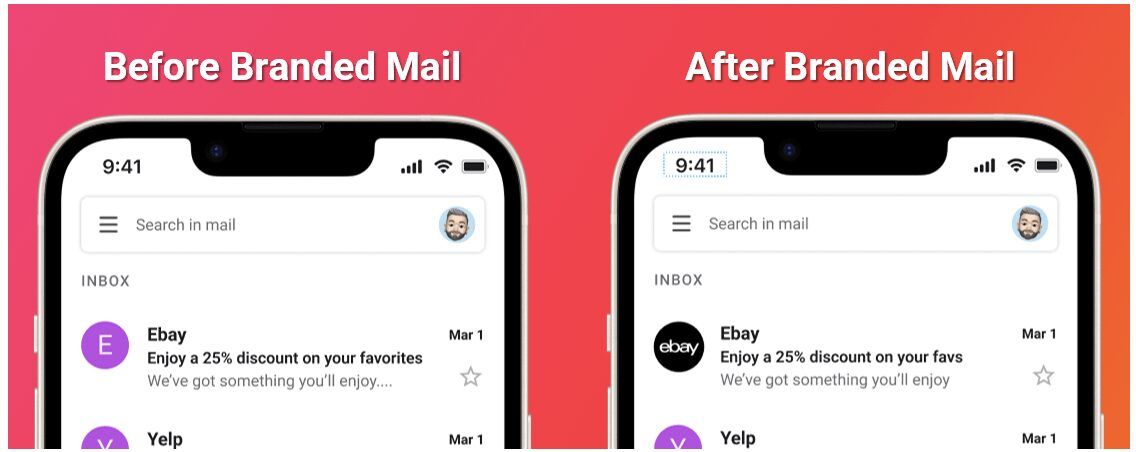
- •Branded Mail
Shows a brand logo next to verified email senders in Apple. This comes with a ‘digest’ feature that consolidates all emails from a particular sender into a single, organized view.
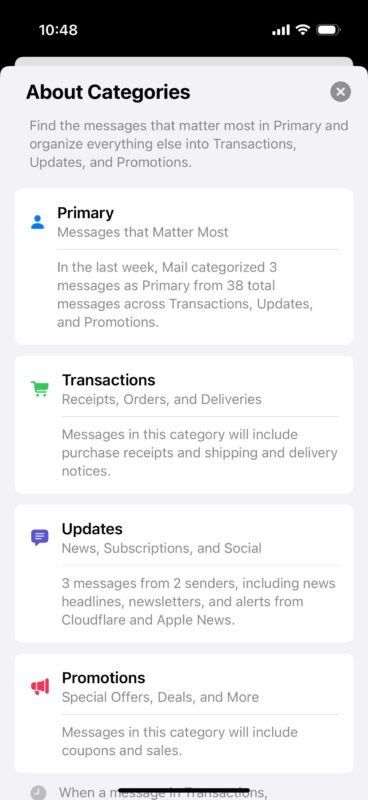
- •Mail Categories
Apple's new Mail Categories organizes emails into sections like Primary, Transactions, Updates, and Promotions, helping you quickly find important messages. If needed, readers can switch back to the standard list view with a button in the top right corner of the Mail app.
The changes were implemented for iPhone users in late 2024. The new look for Mail is expected to go live for Mac and iPad users with the upcoming release of iOS 18.4.
5 huge Apple Mail changes, and what to do about them
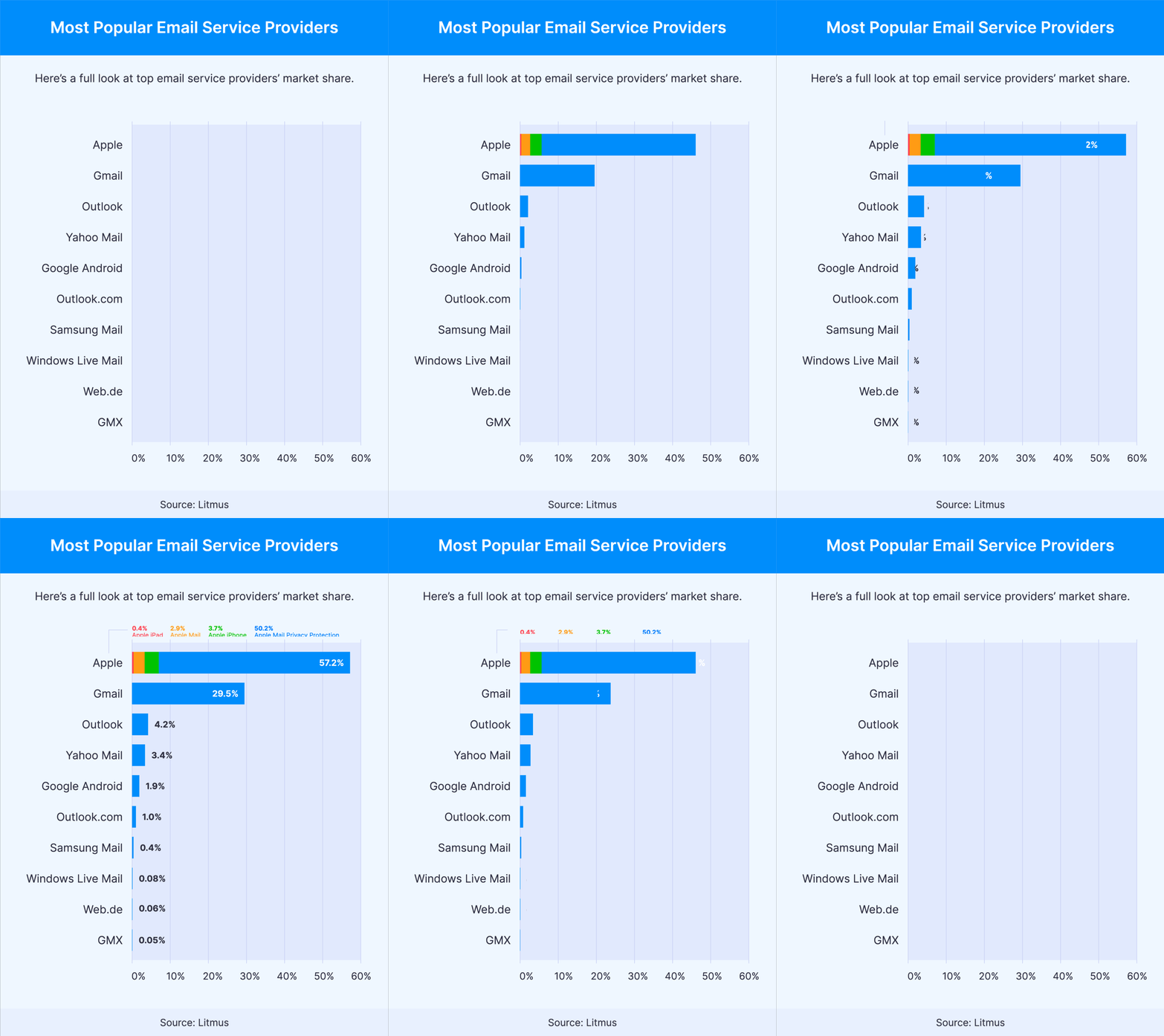
With half of all email users on Apple Mail, this major update could reshape reading habits—and impact how critical emails reach inboxes.
Here are 5 of the biggest changes from my test run of the 18.2 Apple Mail update:
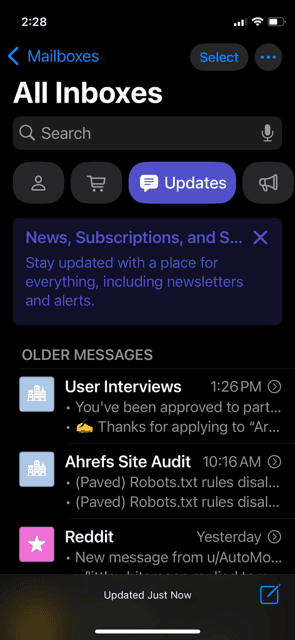
1. Newsletters go to the Updates tab by default.
Apple’s new inbox categories deliver newsletters to the Updates tab, reserving the Primary tab for personal and urgent emails.
2. Apple Mail has a streamlined new look.
Apple Mail’s redesign resembles the iPhone Messages app, grouping emails from the same sender for a cleaner, more intuitive experience. It declutters the inbox but marks a big change for those used to the classic layout. Fortunately, Apple lets users switch back if they prefer the old view.
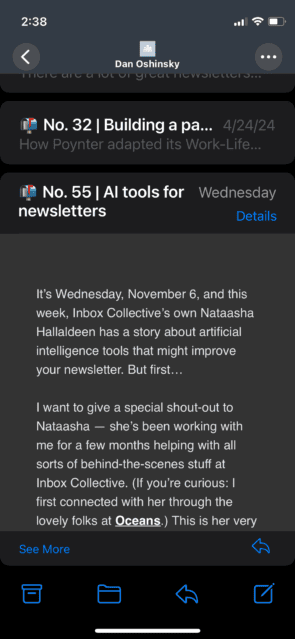
3. Newsletters and email marketing messages get clipped...A LOT.
When newsletters land in the Updates tab, only the top portion of the newsletter can be seen. The rest is hidden under a See More link. Now that 18.2 is here, you've got to grab attention fast—assume readers won’t click "See More". This recent email from Lush nails it:
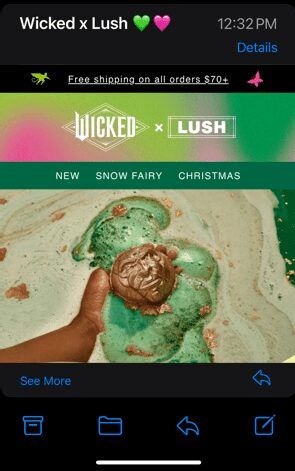
4. Past issues are easier to access.
Readers can now view all your past newsletters in one place, making it simpler to revisit missed issues. After 18.2, expect more late opens, which could give content a longer shelf life.
5. The humble email preheader is gone for good.
Email preheader text (the little snippet after the Subject Line) is gone for good. Apple now generates AI summaries tailored to each user. Rather than poring over the perfect preheader, focus on a strong subject line and engaging opening text.
How will the iOS 18 Apple Mail update affect senders?
Understandably, the latest update might raise some eyebrows for email marketers and newsletter writers. With Apple Mail’s commanding 57% market share in email opens, it’s a key player for everyone.
Rest assured: If your list is clean and engaged and you’re not spamming people, the experts agree that you’re in good shape for the latest Apple Mail Update.
If you're sending mail that subscribers want and expect, then Apple's announcements should excite, rather than scare you! Your mutual customers will spend more time in their inbox with your mail when that inbox is functional and easy to manage.
Alison Gootee, Deliverability Expert at Braze
What should email senders do about iOS 18 Apple Mail update?
If you don't like tabbed inboxes, here are some things you can do to enhance the experience for your Apple Mail subscribers.
- •Don't bury the lede.
Now that all newsletters and email marketing messages are clipped by default, adjust your header, opening lines, and imagery for maximum impact. - •Send emails your subscribers want and expect.
Share unique, helpful content that people actually want. If you're not sure what they want, run a survey or poll to get feedback. - •Keep a super clean list.
Remove or re-engage people who haven't read your content in a while. - •Encourage people to reply to your emails.
Better engagement = better deliverability. - •Take it to the next level with Branded Mail.
Apple's new Branded Mail can boost trust and visibility in inboxes. As an added bonus, you'll have a snazzy sender icon in Apple Mail.
Can I turn off Categories in my Apple Mail inbox?
Yes. Apple recognizes that not everyone loves a tabbed inbox, so you can revert to the old style. If you'd prefer a single, streamlined inbox, you can easily turn off mail categories.
How to revert back to the classic Apple Mail inbox:
- In Apple Mail, tap the three dots icon.
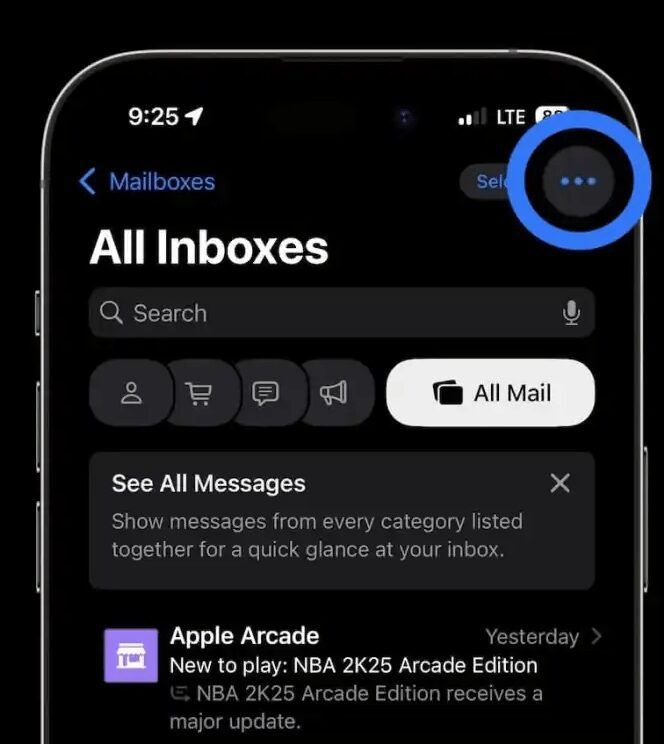
- Tap Choose List View.
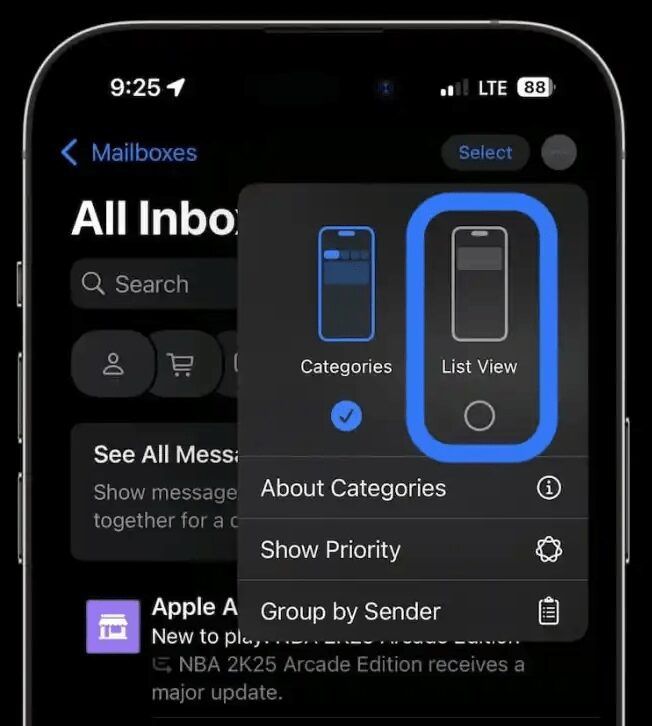
Now, your emails will display in one clean list without the category tabs.
As we get used to the iOS 18.2 release and its fresh take on Apple Mail, staying ahead means staying adaptable. Embrace the change, focus on delivering content that resonates, and keep your list clean, and you'll be ready for future mailings.
More resources: