When it comes to newsletters, having a tasteful and eye-catching design is key in developing your brand and engaging subscribers.
Subscribers and advertisers alike can tell how much effort you put into your presentation, and it makes a difference in how they interact with your newsletter. From a clean layout to a consistent color scheme, every detail matters.
A flashy, brand-consistent email avatar may not seem like the most essential component of your publication. However, it can make for a nice addition to help your emails stand out. Let’s talk about how you can create one for your newsletter.
How to upload a GIF as your profile picture
In order to display an animated avatar in your emails, you’ll have to upload it to the account you use to send out your newsletter. Unfortunately, this feature isn’t available for certain email services, such as Outlook. However, if you're a Gmail user, we'll demonstrate how you can pull off the process in three simple steps.
1. Find a GIF to upload
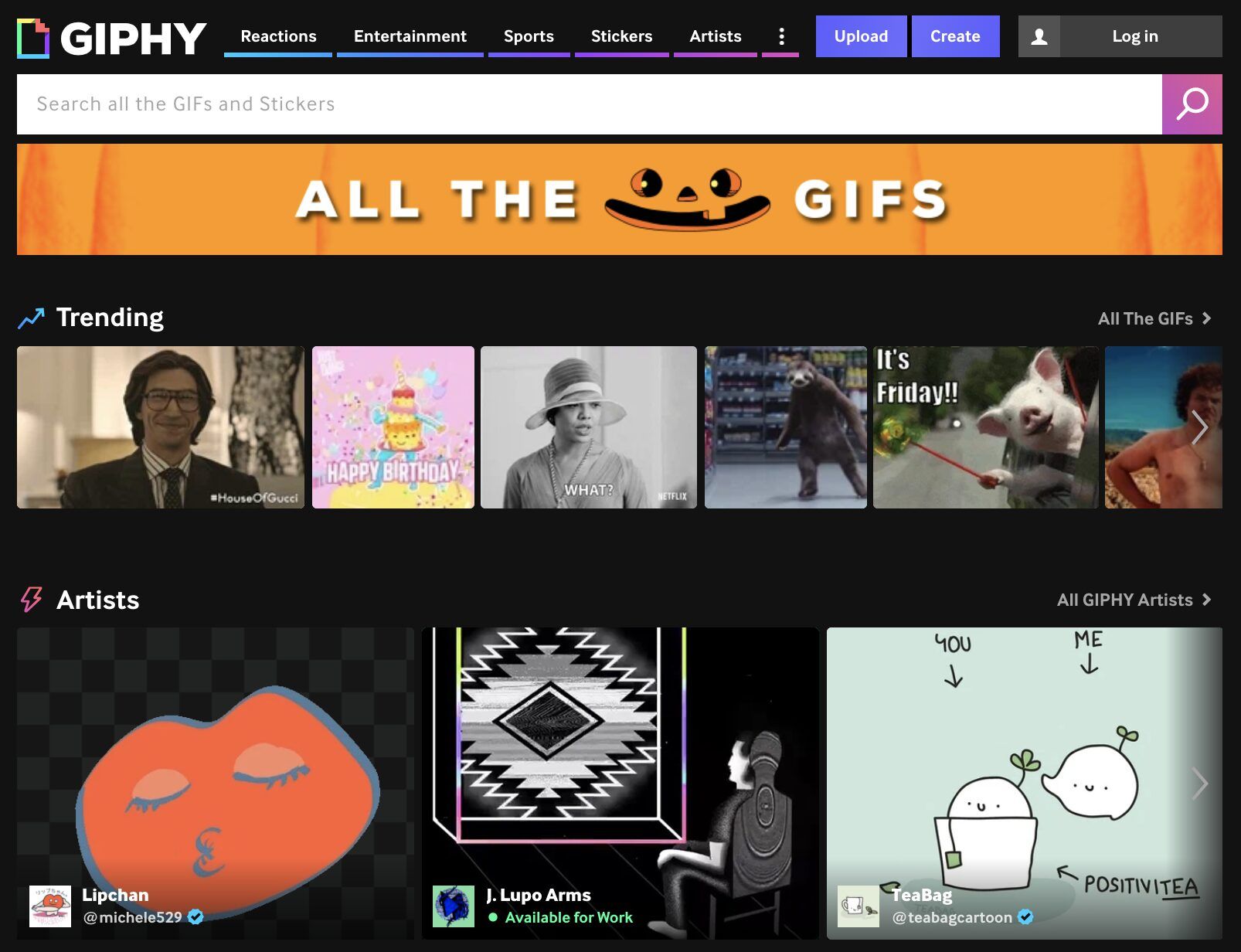
Before you can upload a GIF to your account, you’ll need to have one ready to go. If you want to upload a popular video, you can try finding it in an online library such as GIPHY, Gfycat or Tenor. Otherwise, if you’d rather create your own media, you can do so using a couple of different methods.
Creating a GIF from a video
If you have a video in mind, converting it to a GIF couldn’t be easier. It’s as easy as uploading your video to a file converter such as Ezgif or Adobe Spark’s free tool. Even if all you have is a YouTube link, you can go to a website like gifs.com. There, you’ll be able to make your own edits and adjust the start and end times.
Creating a GIF from your own pictures
If you want your GIF to be personalized to your brand, you’ll probably want to create one using a series of images. Depending on the length and flow of your GIF, you can use as few or as many photos as you want. Once you’ve gathered your pictures, feel free to use tools to aid in your process. Software like Photoshop or Canva can help you turn your series into an animation.
2. Manage your Google account
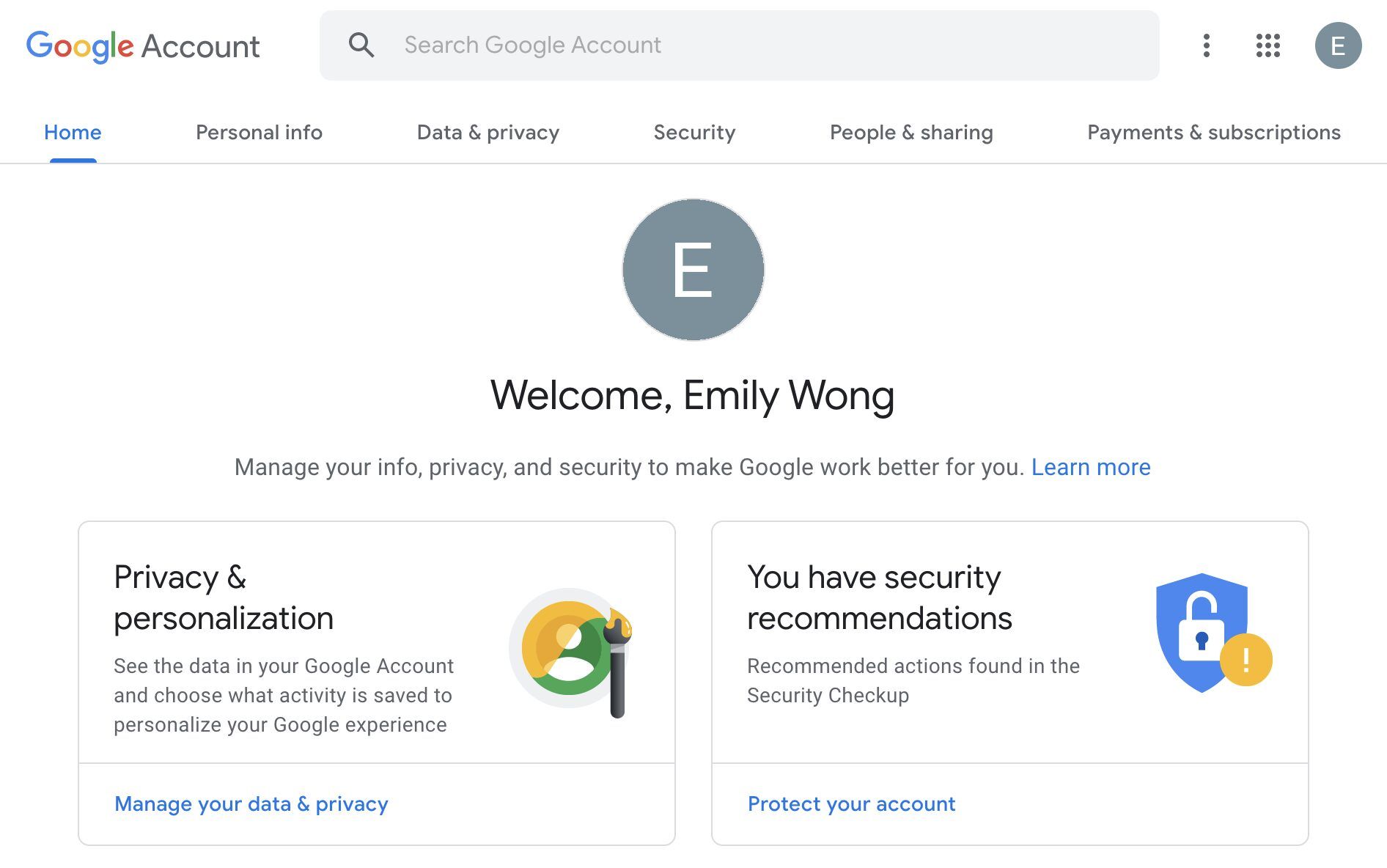
To upload your GIF, log into your chosen email and navigate to myaccount.google.com.
3. Upload your GIF and save
Uploading a GIF to your account is as easy as changing your profile picture. Just click into your current photo to access a pop-up prompting you to add a new one.
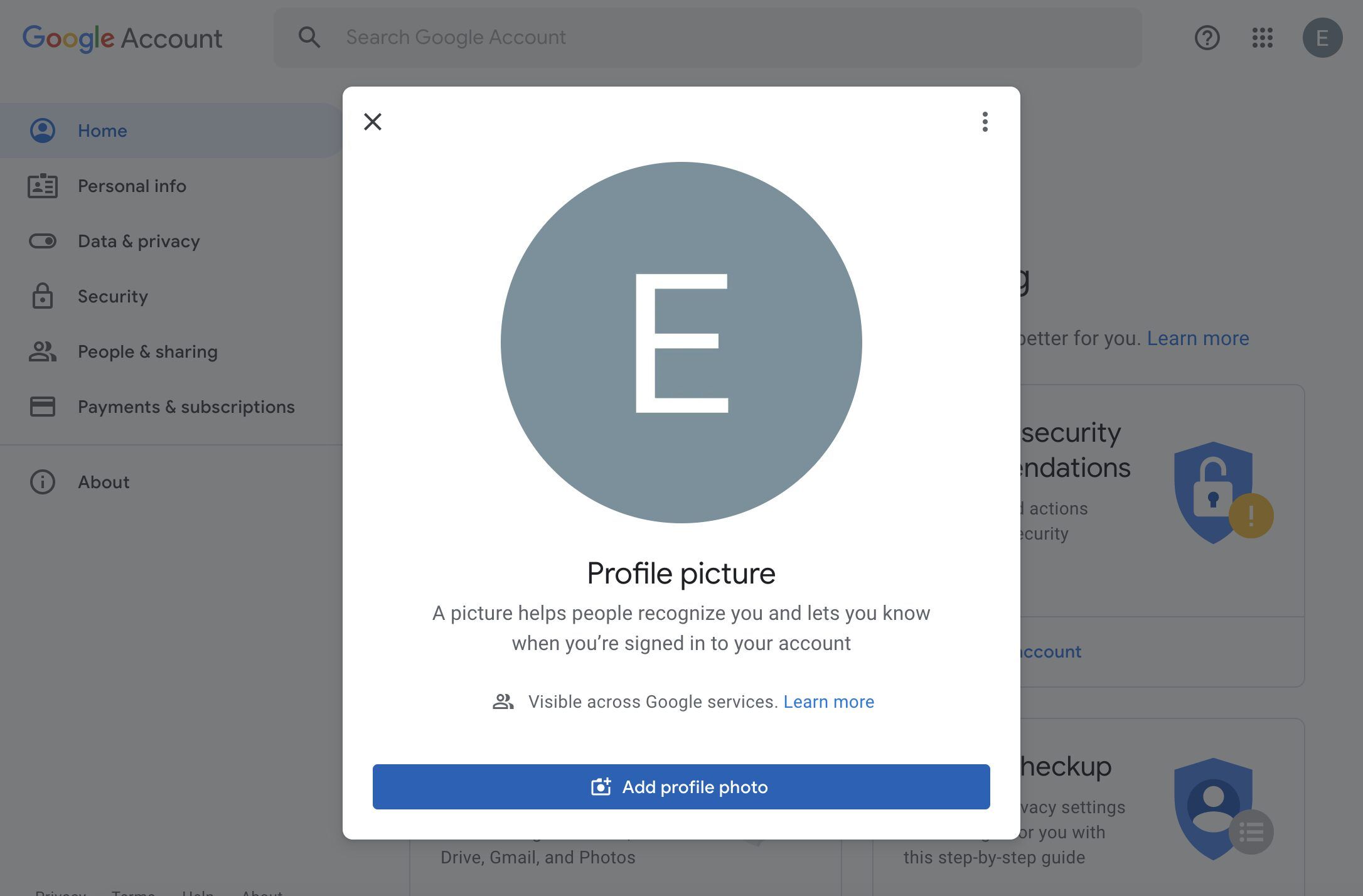
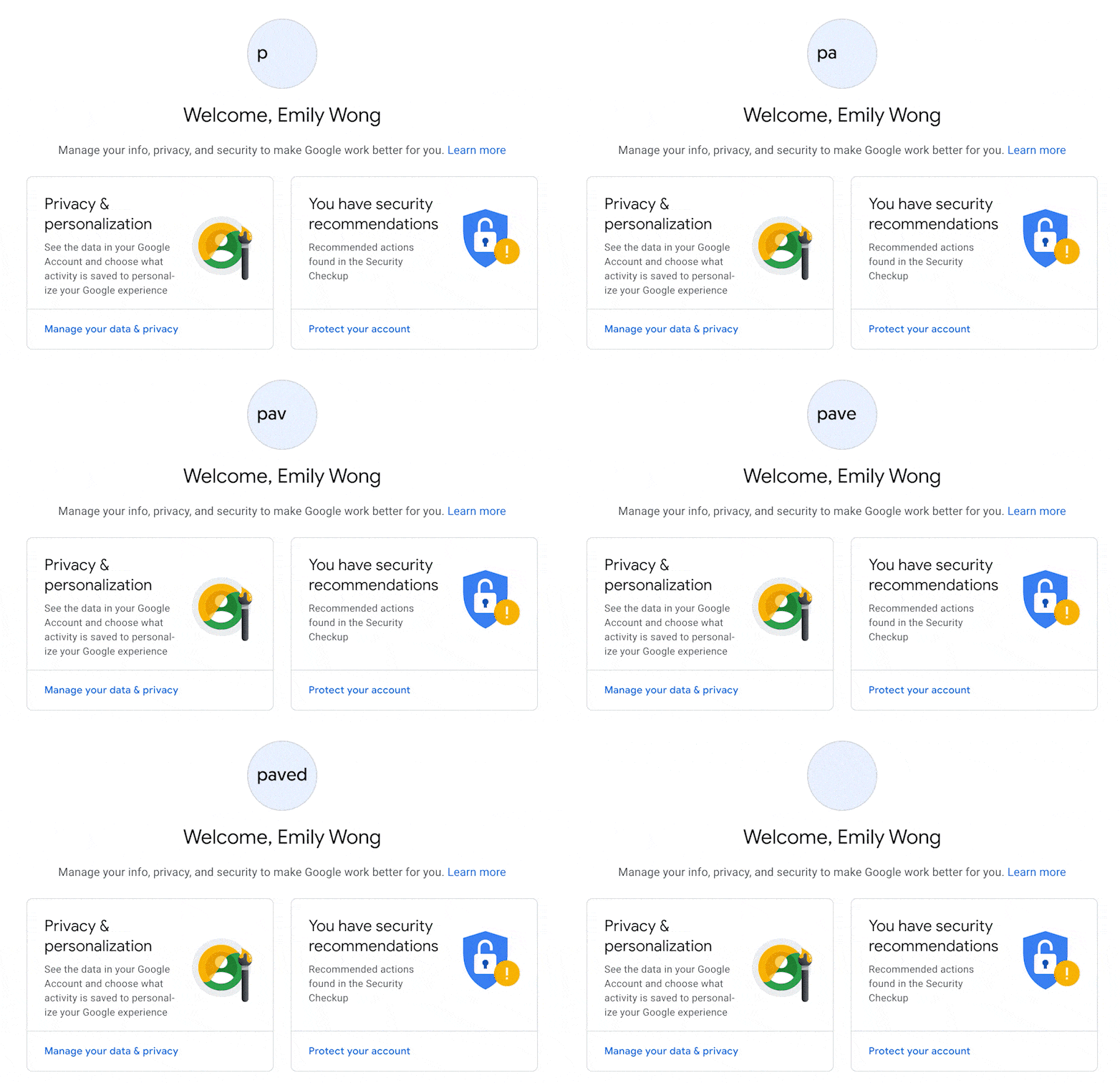
From there, you can choose your GIF from your documents, adjust the format and save it. After you’ve uploaded and saved your animated avatar, all that’s left is to test it out. Send a sample email to your own account to make sure everything is in working order. Once you know you’re all set, enjoy your revamped profile!
You can never go wrong with upgrading your email design, but why stop there? If you're ready to take your newsletter to the next level, sign up as a publisher to start streamlining your revenue.